Menu
Meridian Beacons
Role
Lead Product Designer
Description
Refreshed the Meridian Beacons app visual design, added additional functionality to expedite Beacon management.
Background
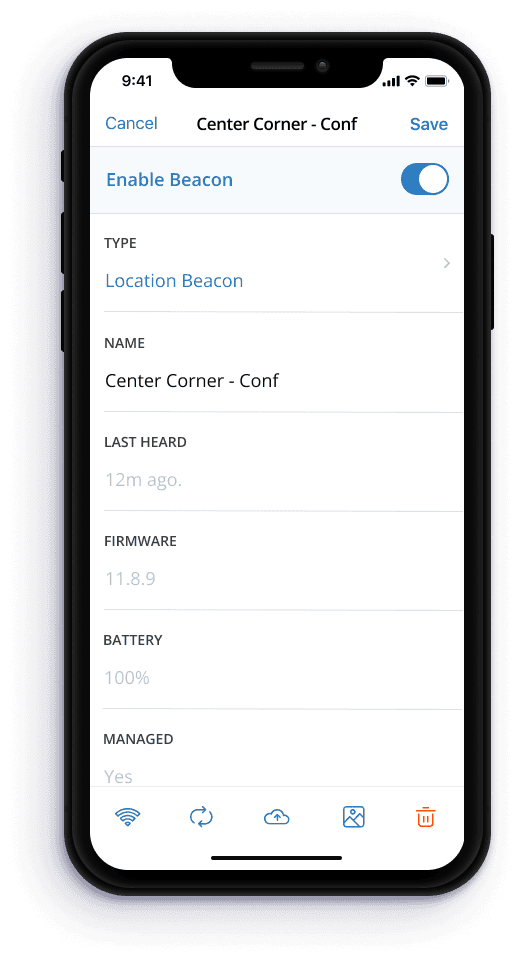
Aruba Beacons are small pieces of hardware that emit a low-powered bluetooth signal. Our technology uses this signal to determine your location on a map. With the Beacons App, you can manage or replace your Beacons, associate them with Campaigns, or debug issues you may be having along the way.
When conceptualizing this app, it was important to emphasize simplicity, speed, and manageability. With feedback around improving managing low battery beacons to creating options for new hardware, this redesign was about increasing speed, transparency, and versatility.
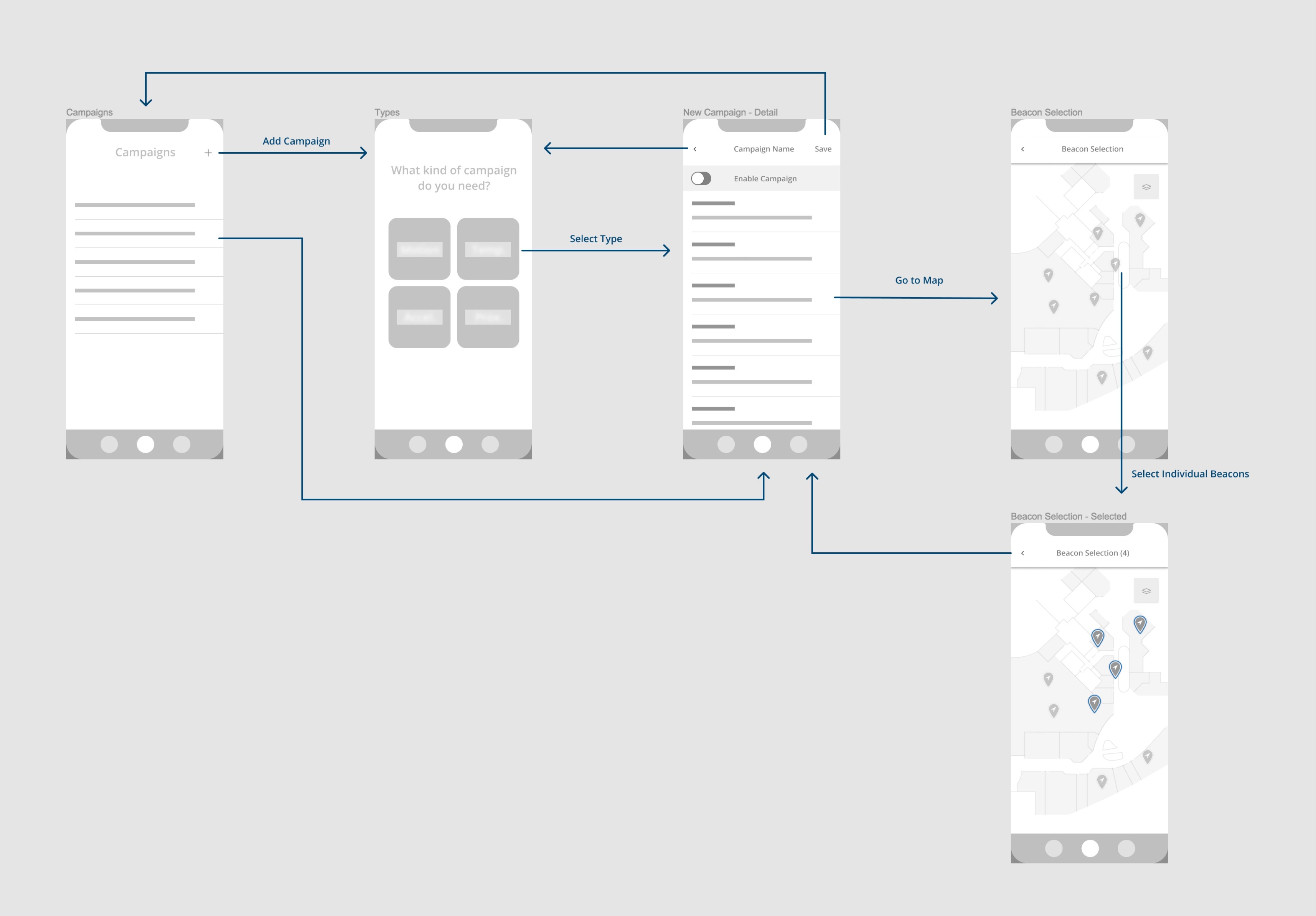
A big portion of our efforts in this redesign were leveraging potential new hardware. Though the extent of this remain confidential, it was important to design a system that allows our customers to setup ‘hooks’ for whatever capabilities this new hardware allows.
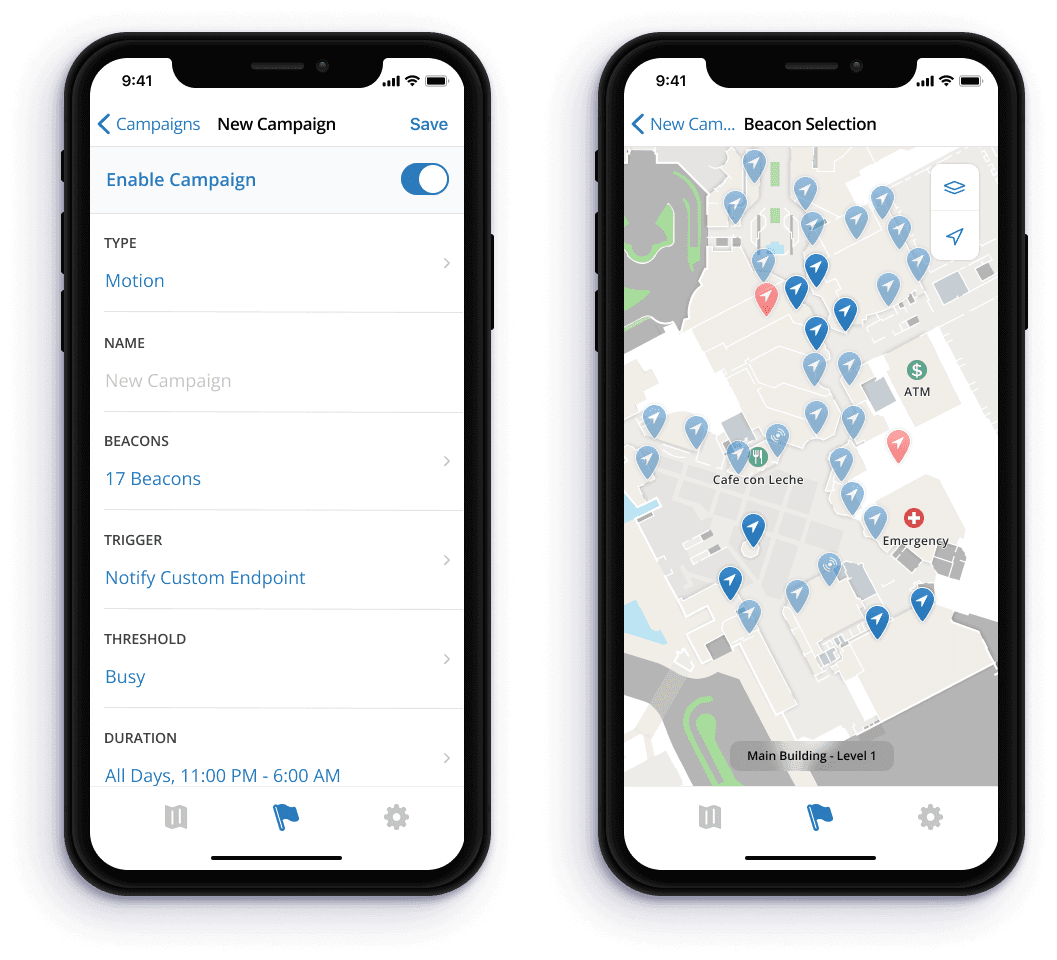
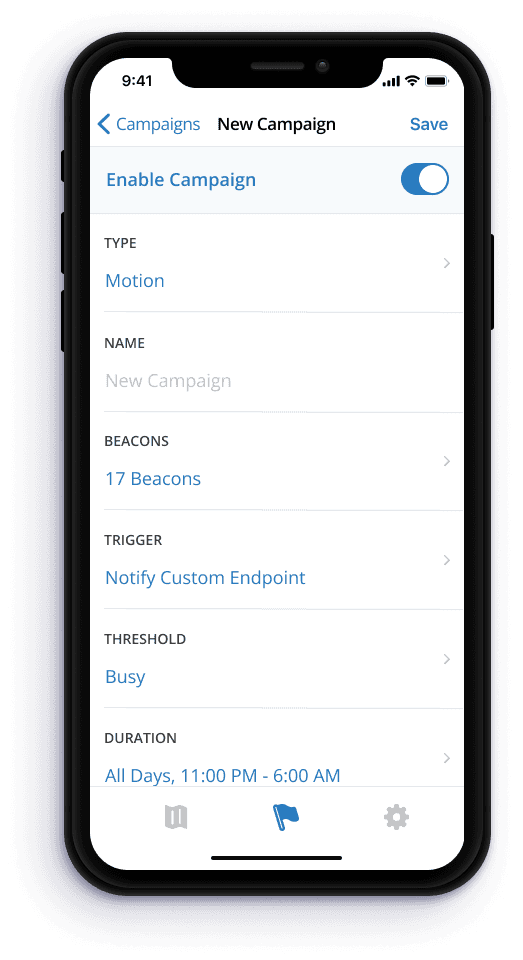
With that in mind, we decided to utilize our Campaigns feature which traditionally allows customers to select individual Beacons and have them act as a ‘proximity beacon’. When an end user comes within range of said Beacon, they will either receive a push notification or it will notify a custom endpoint, thus triggering whatever logic functions the customer may need. The second part to that became the basis for how we’d handle new hardware.
Design
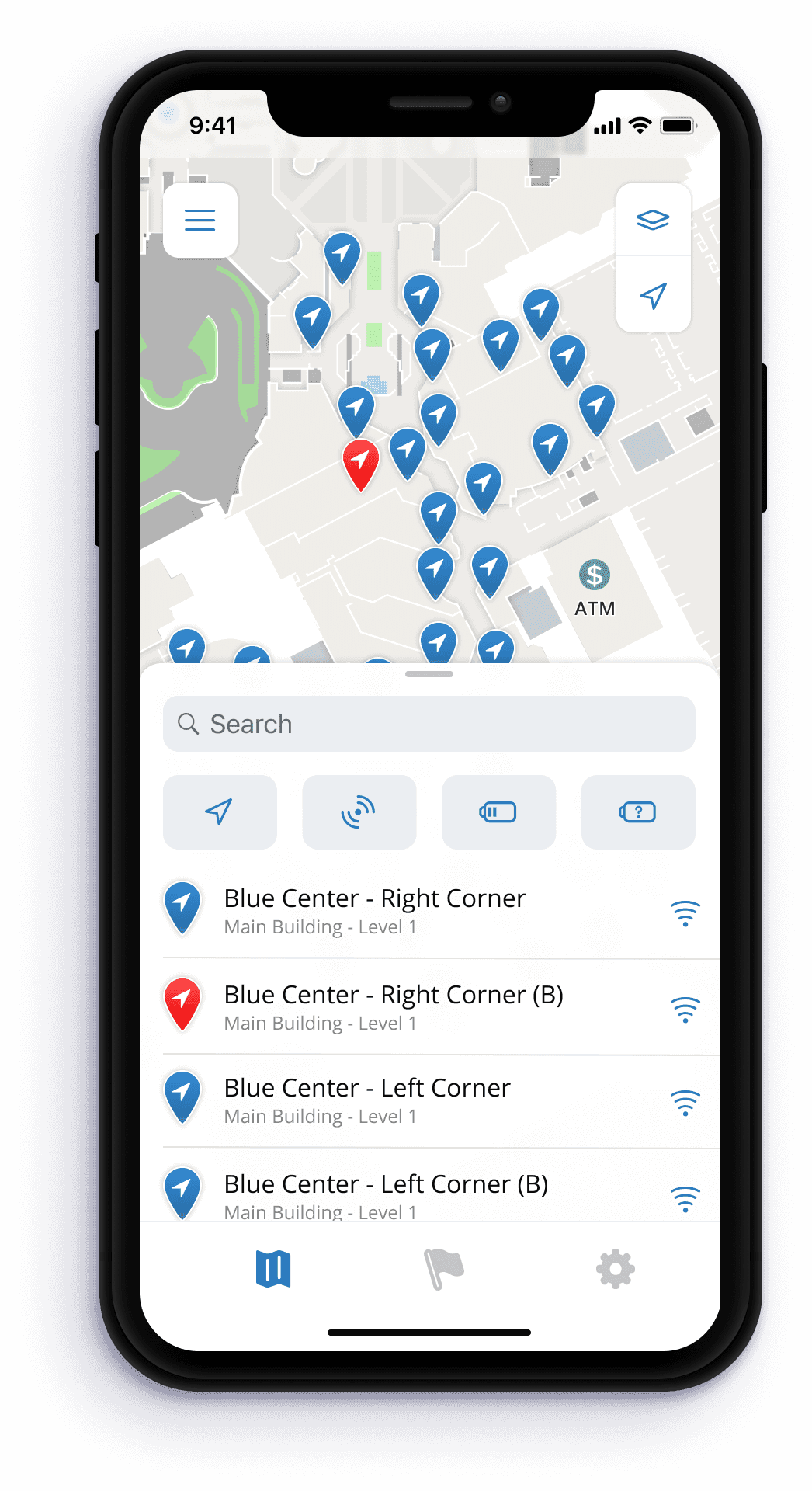
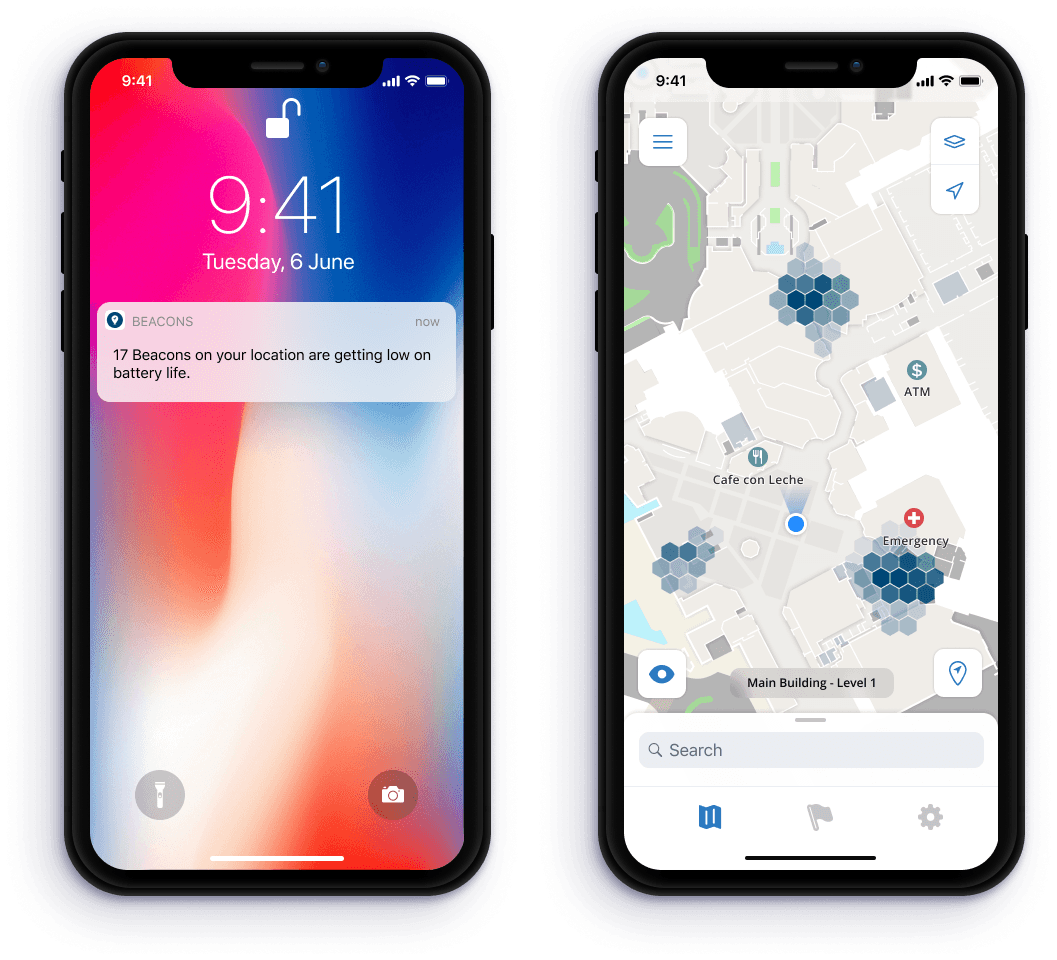
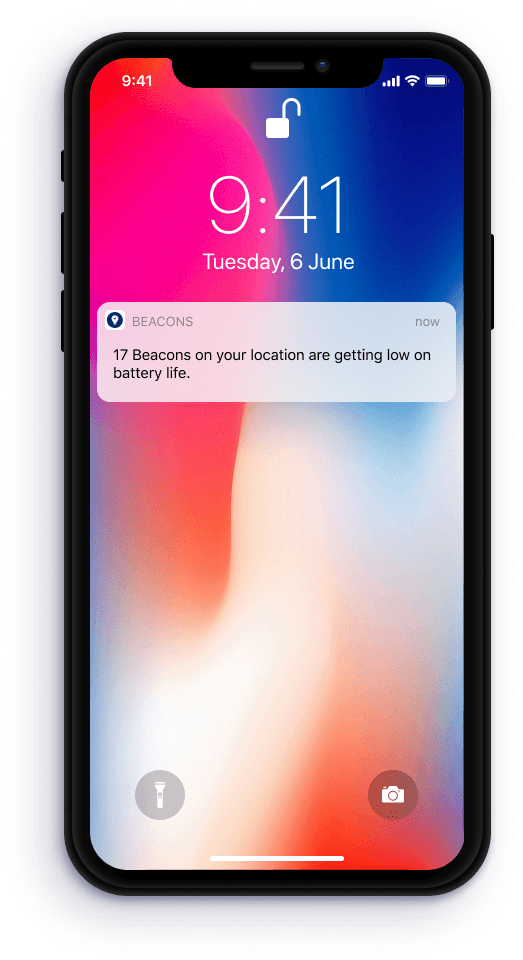
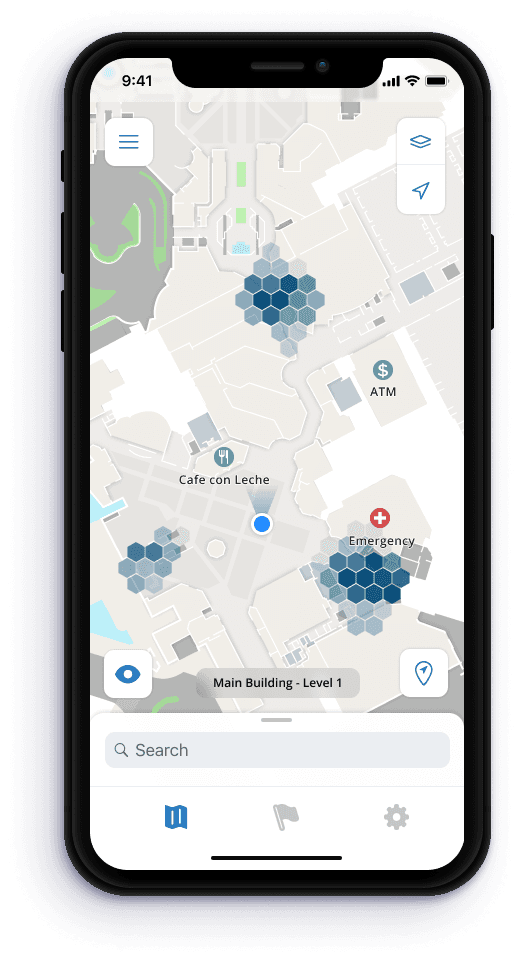
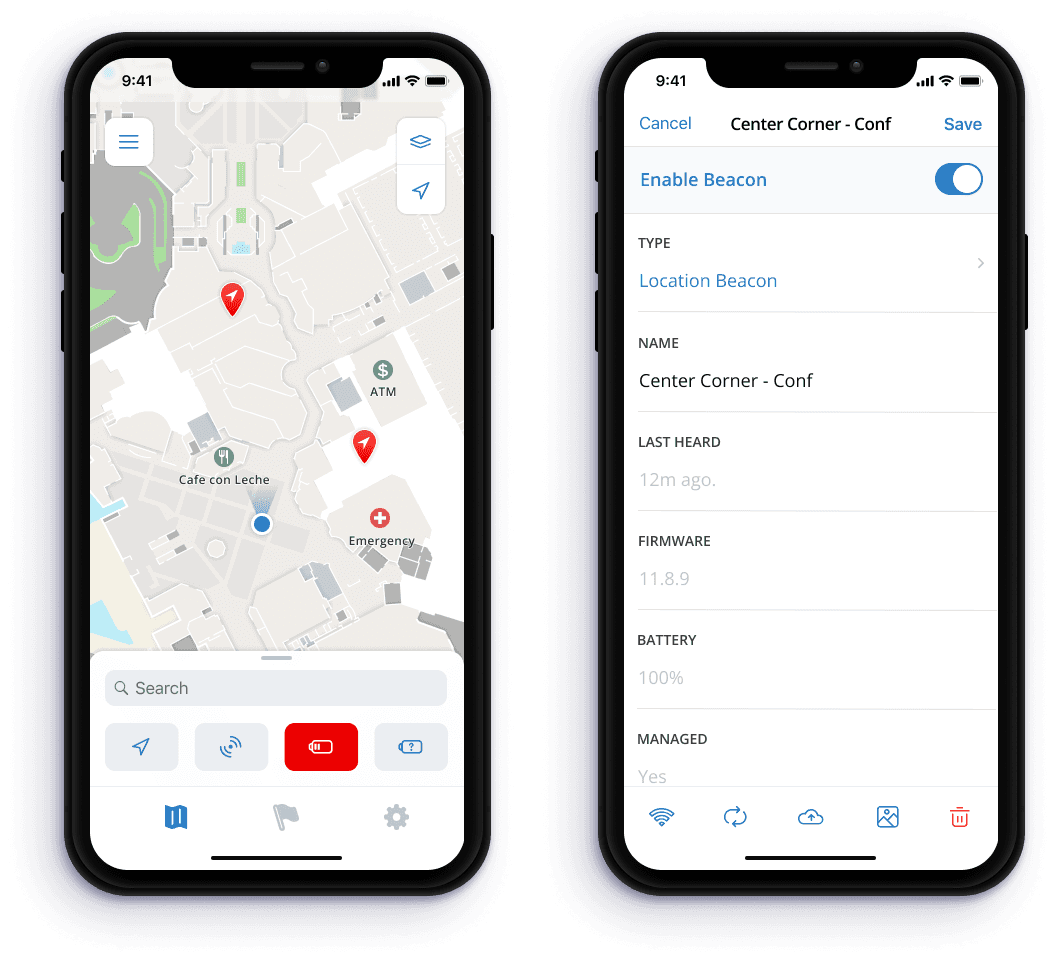
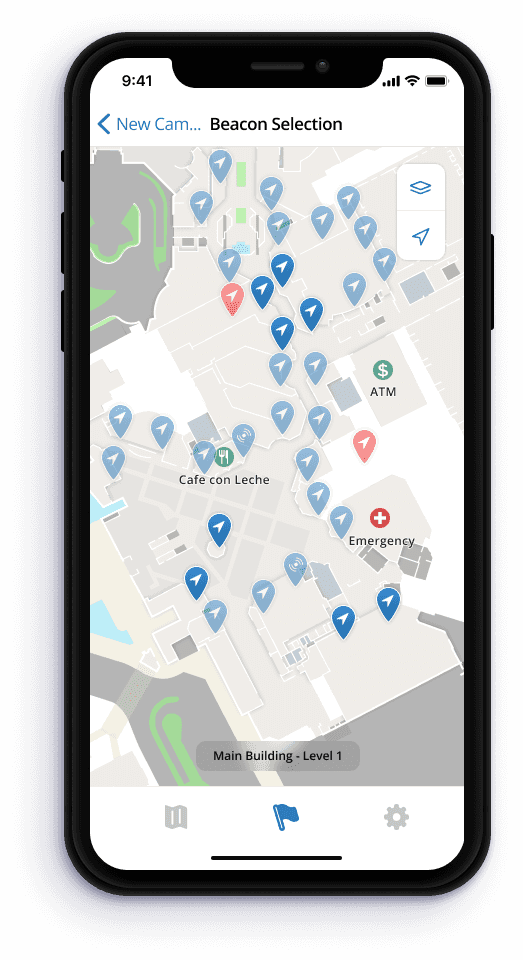
One important piece of feedback we kept getting was that managing dying beacons was a bit of a headache. Traditionally, it meant using our web CMS to list out Beacons that were dying, finding them on a map, then physically tracking them down and replacing them. In an effort to reduce as much friction as possible when it came to managing larger Beacon deployments, I wanted to explore ways in which we could make it simpler.
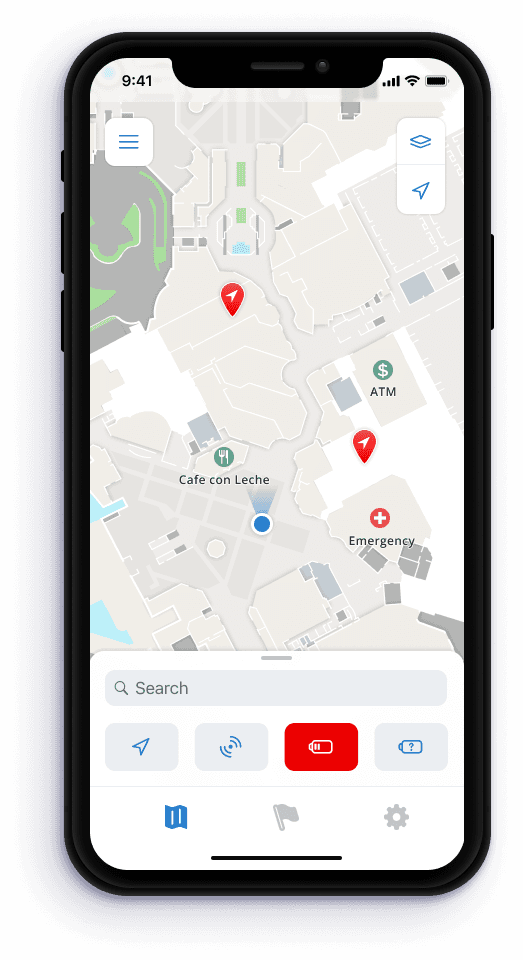
For starters, we empathized with IT people who often have to manage these deployments. We thought it’d be important ahead of time to let them know when their Beacon battery life is getting low. Additionally, we wanted to show very clearly on a map where these dying Beacons are. Lastly, we wanted the hardware to give a visual indicator of which Beacons needed to be replaced. All of this combined with the portability of the mobile app experience enables the user to tackle Beacons management more smoothly.
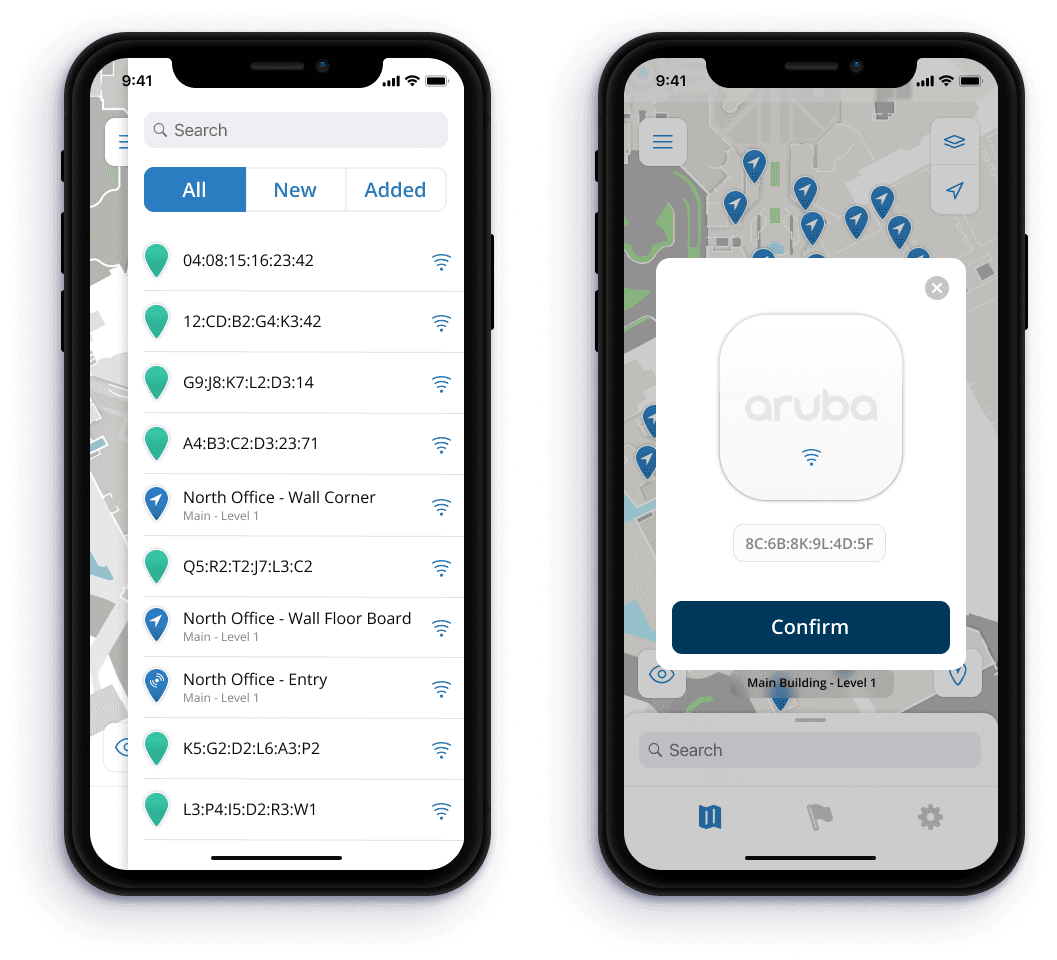
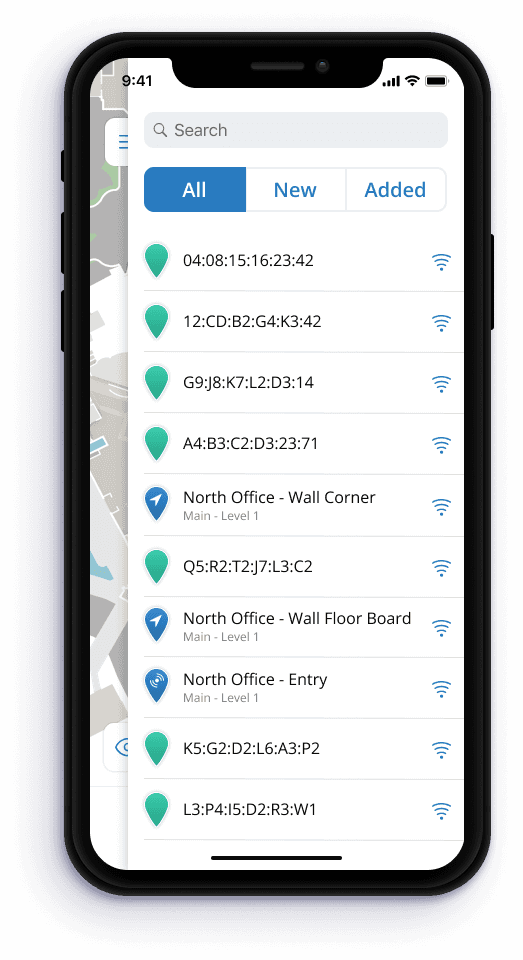
The actual process of adding a Beacon goes like this: the user opens the box of Beacons, removes the tab to turn the Beacon on, opens the Beacons drawer in the Beacons app, tries to find the MAC address that’s listed on the physical hardware to match with what’s in the drawer, and finally taps and drags to add the Beacon onto the map.
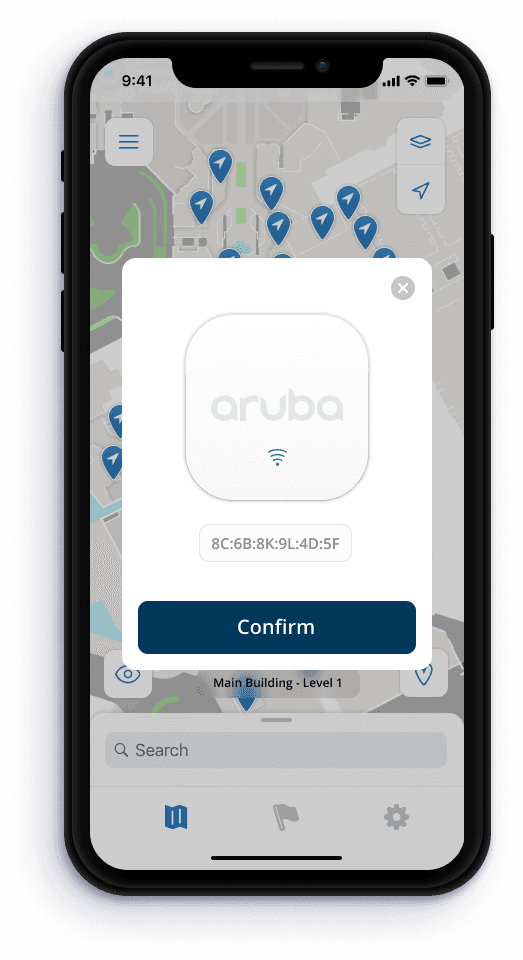
For the most part, this works pretty well so long as you follow that process. If you turn on each individual Beacon in your box of Beacons, then you have a bunch of competing bluetooth signals jamming up your Beacons drawer. An alternative approach we decided to give customers was simply force touching on the map, physically placing the hardware on your phone, and tapping the ‘Confirm’ button. Honing in the RSSI values on the hardware made the accuracy of adding a Beacon in this manner almost entirely accurate. This saves a bit of the trouble of attempting to line-up often difficult to read MAC addresses.